LCD I2C 16×2 20×4 con RaspberryPI
Come associare un LCD I2C al nostro progetto RaspberryPI

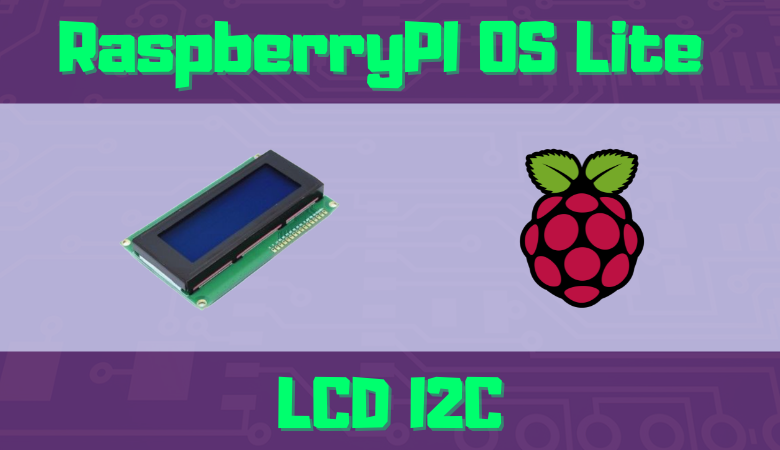
In questo tutorial si vuole mostrare la procedura per abilitare la gestione di un display LCD 16×2 o 20×4 con interfaccia i2c sulla nostra board RaspberryPI. Per la stesura del tutorial è stato utilizzata una scheda RaspberryPI 3 model B. Come sistema operativo invece è stato utilizzato RaspberryPI OS Lite aggiornato a luglio 2021.
Le operazioni da svolgere risultano essere le seguenti:
1 – Installazione dei tools di sistema necessari
Sarà necessario installare i pacchetti i2c-tools e python-smbus attraverso il comando
$ sudo apt-get install i2c-tools python-smbus
Una volta terminata l’installazione dovremo abilitare l’interfaccia i2c (tale operazione richiederà il riavvio della scheda). Pertanto entriamo nel menu delle impostazioni di sistema con il comando
$ sudo raspi-config
e attraverso il menu testuale dovremo recarci in
Interfacing Option
per attivare l’interfaccia di nostro interesse, ovvero
I2C
Terminata questa operazione il sistema richiederà un riavvio.
2 – Creazione di una libreria per la corretta comunicazione
Una libreria è a tutti gli effetti un set di regole e funzioni per la comunicazione con hardware esterno al sistema. Come avviene per molti progetti opensource, anche per RaspberryPI, esistono librerie condivise con licenza CC, GNU o simili. Di seguito viene condivisa la libreria I2C_LCD rilasciata con licenza GNU da Denis Pleic.
Basterà copiare quanto segue in un file nominato I2C_LCD_driver.py e posizionare tale libreria nella stessa cartella del programma presentato al prossimo punto.
NB. le variabili I2CBUS e ADDRESS devono essere modificate a seconda del vostro progetto. Se non conoscete l’indirizzo del vostro LCD potete utilizzare il comando i2cdetect
# -*- coding: utf-8 -*-
# Original code found at:
# https://gist.github.com/DenisFromHR/cc863375a6e19dce359d

"""
Compiled, mashed and generally mutilated 2014-2015 by Denis Pleic
Made available under GNU GENERAL PUBLIC LICENSE

# Modified Python I2C library for Raspberry Pi
# as found on http://www.recantha.co.uk/blog/?p=4849
# Joined existing 'i2c_lib.py' and 'lcddriver.py' into a single library
# added bits and pieces from various sources
# By DenisFromHR (Denis Pleic)
# 2015-02-10, ver 0.1

"""

# i2c bus (0 -- original Pi, 1 -- Rev 2 Pi)
I2CBUS = 0

# LCD Address
ADDRESS = 0x27

import smbus
from time import sleep

class i2c_device:
   def __init__(self, addr, port=I2CBUS):
      self.addr = addr
      self.bus = smbus.SMBus(port)

# Write a single command
   def write_cmd(self, cmd):
      self.bus.write_byte(self.addr, cmd)
      sleep(0.0001)

# Write a command and argument
   def write_cmd_arg(self, cmd, data):
      self.bus.write_byte_data(self.addr, cmd, data)
      sleep(0.0001)

# Write a block of data
   def write_block_data(self, cmd, data):
      self.bus.write_block_data(self.addr, cmd, data)
      sleep(0.0001)

# Read a single byte
   def read(self):
      return self.bus.read_byte(self.addr)

# Read
   def read_data(self, cmd):
      return self.bus.read_byte_data(self.addr, cmd)

# Read a block of data
   def read_block_data(self, cmd):
      return self.bus.read_block_data(self.addr, cmd)


# commands
LCD_CLEARDISPLAY = 0x01
LCD_RETURNHOME = 0x02
LCD_ENTRYMODESET = 0x04
LCD_DISPLAYCONTROL = 0x08
LCD_CURSORSHIFT = 0x10
LCD_FUNCTIONSET = 0x20
LCD_SETCGRAMADDR = 0x40
LCD_SETDDRAMADDR = 0x80

# flags for display entry mode
LCD_ENTRYRIGHT = 0x00
LCD_ENTRYLEFT = 0x02
LCD_ENTRYSHIFTINCREMENT = 0x01
LCD_ENTRYSHIFTDECREMENT = 0x00

# flags for display on/off control
LCD_DISPLAYON = 0x04
LCD_DISPLAYOFF = 0x00
LCD_CURSORON = 0x02
LCD_CURSOROFF = 0x00
LCD_BLINKON = 0x01
LCD_BLINKOFF = 0x00

# flags for display/cursor shift
LCD_DISPLAYMOVE = 0x08
LCD_CURSORMOVE = 0x00
LCD_MOVERIGHT = 0x04
LCD_MOVELEFT = 0x00

# flags for function set
LCD_8BITMODE = 0x10
LCD_4BITMODE = 0x00
LCD_2LINE = 0x08
LCD_1LINE = 0x00
LCD_5x10DOTS = 0x04
LCD_5x8DOTS = 0x00

# flags for backlight control
LCD_BACKLIGHT = 0x08
LCD_NOBACKLIGHT = 0x00

En = 0b00000100 # Enable bit
Rw = 0b00000010 # Read/Write bit
Rs = 0b00000001 # Register select bit

class lcd:
   #initializes objects and lcd
   def __init__(self):
      self.lcd_device = i2c_device(ADDRESS)

      self.lcd_write(0x03)
      self.lcd_write(0x03)
      self.lcd_write(0x03)
      self.lcd_write(0x02)

      self.lcd_write(LCD_FUNCTIONSET | LCD_2LINE | LCD_5x8DOTS | LCD_4BITMODE)
      self.lcd_write(LCD_DISPLAYCONTROL | LCD_DISPLAYON)
      self.lcd_write(LCD_CLEARDISPLAY)
      self.lcd_write(LCD_ENTRYMODESET | LCD_ENTRYLEFT)
      sleep(0.2)


   # clocks EN to latch command
   def lcd_strobe(self, data):
      self.lcd_device.write_cmd(data | En | LCD_BACKLIGHT)
      sleep(.0005)
      self.lcd_device.write_cmd(((data & ~En) | LCD_BACKLIGHT))
      sleep(.0001)

   def lcd_write_four_bits(self, data):
      self.lcd_device.write_cmd(data | LCD_BACKLIGHT)
      self.lcd_strobe(data)

   # write a command to lcd
   def lcd_write(self, cmd, mode=0):
      self.lcd_write_four_bits(mode | (cmd & 0xF0))
      self.lcd_write_four_bits(mode | ((cmd << 4) & 0xF0))

   # write a character to lcd (or character rom) 0x09: backlight | RS=DR<
   # works!
   def lcd_write_char(self, charvalue, mode=1):
      self.lcd_write_four_bits(mode | (charvalue & 0xF0))
      self.lcd_write_four_bits(mode | ((charvalue << 4) & 0xF0))

   # put string function with optional char positioning
   def lcd_display_string(self, string, line=1, pos=0):
    if line == 1:
      pos_new = pos
    elif line == 2:
      pos_new = 0x40 + pos
    elif line == 3:
      pos_new = 0x14 + pos
    elif line == 4:
      pos_new = 0x54 + pos

    self.lcd_write(0x80 + pos_new)

    for char in string:
      self.lcd_write(ord(char), Rs)

   # clear lcd and set to home
   def lcd_clear(self):
      self.lcd_write(LCD_CLEARDISPLAY)
      self.lcd_write(LCD_RETURNHOME)

   # define backlight on/off (lcd.backlight(1); off= lcd.backlight(0)
   def backlight(self, state): # for state, 1 = on, 0 = off
      if state == 1:
         self.lcd_device.write_cmd(LCD_BACKLIGHT)
      elif state == 0:
         self.lcd_device.write_cmd(LCD_NOBACKLIGHT)

   # add custom characters (0 - 7)
   def lcd_load_custom_chars(self, fontdata):
      self.lcd_write(0x40);
      for char in fontdata:
         for line in char:
            self.lcd_write_char(line)
3 – Programma Python per la gestione del display LCD
Arrivato a questo punto abbiamo tutti gli strumenti per scrivere il nostro primo programma Python per la gestione del display LCD. Tale programma stamperà a video delle scritte specifiche con tempi prestabiliti.
import  I2C_LCD_driver
from time import *

lcd = I2C_LCD_driver.lcd()
lcd.lcd_clear()      # pulisco l'LCD da eventuali caratteri

lcd.lcd_display_string("TEST LCD I2C",1,4)  # stampo la stringa partendo dalla riga 1 colonna 4
sleep(2)      # attendo 2 secondi
lcd.lcd_display_string("RASPBERRYPI OS  LITE",2)  # stampo la stringa partendo dalla riga 2
sleep(2)      # attendo 2 secondi
lcd.lcd_display_string("www.mst-tutorial.it",4)   # stampo la stringa partendo dalla riga 4
sleep(4)      # attendo 4 secondi
lcd.lcd_clear()      # pulisco l'LCD da eventuali caratteri
Tale gestione può essere ovviamente integrata in sistemi più ampi che gestiscono i vari GPIO e altre componenti.
Ad esempio il seguente programma Python eseguirà cinque volte on/off di un LED posizionato sul GPIO26 (numerazione BCM) per poi procedere alla stampa di stringe sul display LCD.
import  I2C_LCD_driver
import RPi.GPIO as GPIO
from time import *

GPIO.setmode(GPIO.BCM)
GPIO.setwarnings(False)
GPIO.setup(26,GPIO.OUT)

# ripetizione on/off LED posizionato sul GPIO 26
contatore = 0
while contatore <= 5:

	GPIO.output(26, GPIO.HIGH)
	sleep(0.3)
	GPIO.output(26, GPIO.LOW)
	sleep(0.3)
	contatore = contatore +1
##########

lcd = I2C_LCD_driver.lcd()
lcd.lcd_clear()

lcd.lcd_display_string("TEST LCD I2C",1,4)
sleep(2)
lcd.lcd_display_string("RASPBERRYPI OS  LITE",2)
sleep(2)
lcd.lcd_display_string("www.mst-tutorial.it",4)
sleep(4)
lcd.lcd_clear()